
Organizations
Manage your organizations, chatbots, team members, usage, and billing.
Organizations allow you to group chatbots, team members, and billing together. Each organization has its own chatbots, members, usage limits, and subscription plan. This makes it easy to manage multiple projects.
Understanding Organizations
An organization is a workspace that contains:
- Chatbots - All chatbots created within the organization
- Members - Team members who can access the organization
- Usage - Monthly usage tracking for messages, characters, chatbots, and team members
- Billing - Subscription plans and payment information
You can belong to multiple organizations and switch between them. Each organization has its own limits and billing.
Default Organization
When you first sign up, a Default organization is automatically created for you. This makes it easy to get started right away without needing to create an organization manually.
The Default organization:
- Is ready to use immediately after signup
- Has the same features as any other organization
- Works exactly like organizations you create yourself
You can start creating chatbots in your Default organization immediately, or create additional organizations to better organize your projects.
Accessing Organizations
To view your organizations:
- Click on Organizations in the main navigation
- You'll see a list of all organizations you belong to
- Click on an organization card to access it

Organization Features
Once inside an organization, you'll find four main sections accessible from the sidebar:
Chatbots
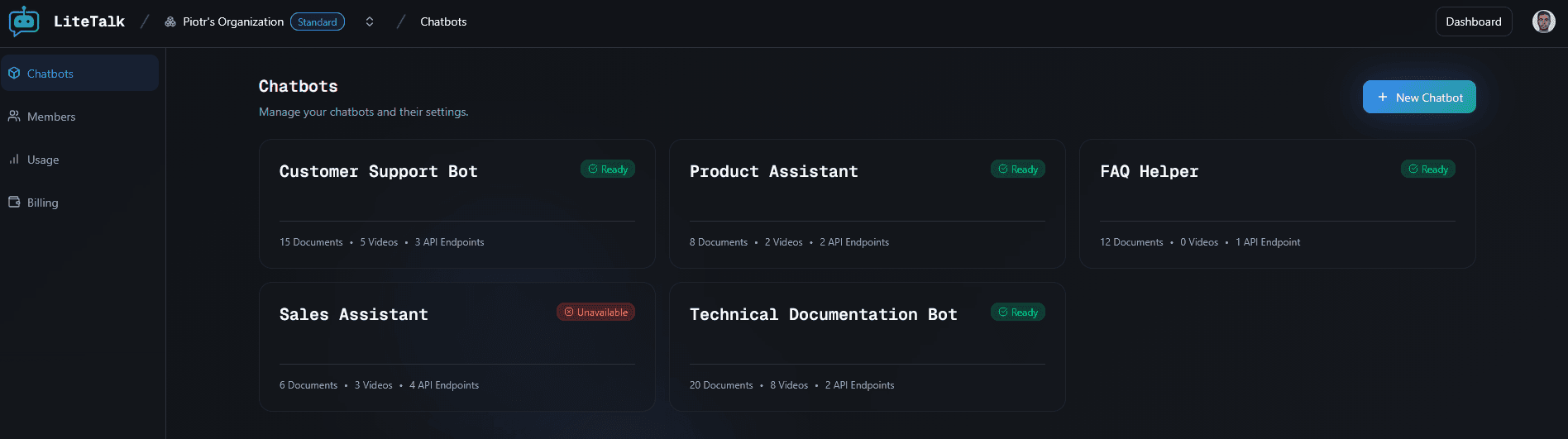
The Chatbots section shows all chatbots created within the organization. Here you can:
- View All Chatbots - See a grid of all chatbots in the organization
- Create New Chatbot - Click "New Chatbot" to start creating a new chatbot
- Access Chatbot Settings - Click on any chatbot card to manage its settings, knowledge, and analytics
Each chatbot card displays:
- Chatbot name
- Status (Ready, Unavailable, etc.)
- Creation date
- Quick access to settings
Members
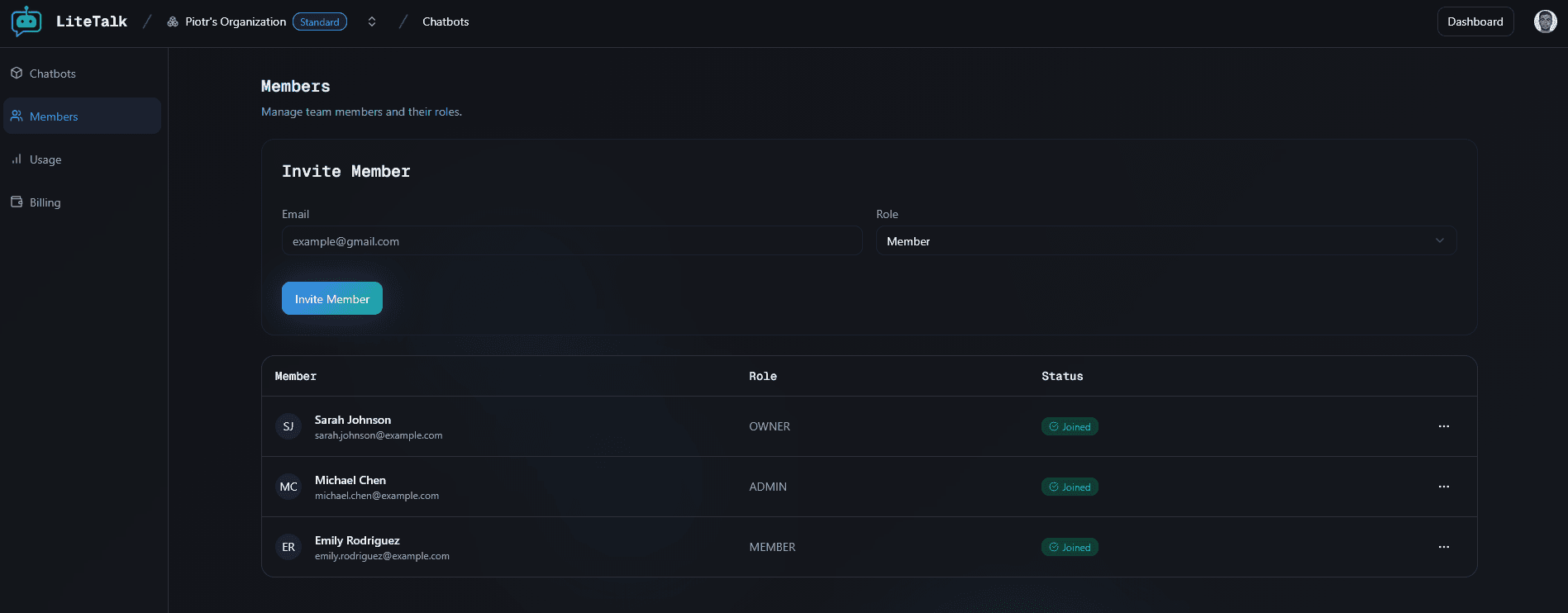
The Members section allows you to manage team members and their access levels. Features include:
- View All Members - See a table of all organization members
- Invite Members - Send email invitations to new team members (Admin/Owner only)
- Manage Roles - Change member roles between Member, Admin, and Owner (Admin/Owner only)
- Remove Members - Remove members from the organization (Admin/Owner only)
Member Roles
- Owner - Full access to all features, including billing and member management
- Admin - Can manage chatbots, members, and most settings, but cannot access billing
- Member - Can create and manage chatbots, but cannot manage members or billing
Member Status
Members can have different statuses:
- Active - Member has joined and is active
- Invited - Member has been invited but hasn't joined yet
- Expired - Invitation has expired and needs to be resent
Usage
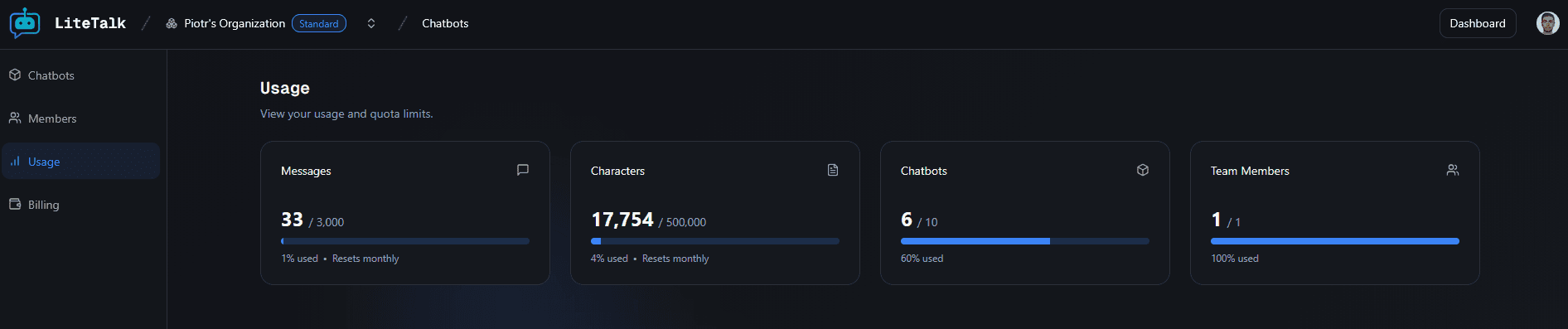
The Usage section displays your organization's current usage and limits. It shows:
- Messages - Number of messages sent this month (resets monthly)
- Characters - Number of characters processed this month (resets monthly)
- Chatbots - Number of active chatbots (doesn't reset)
- Team Members - Number of team members (doesn't reset)
Each metric shows:
- Current usage
- Limit based on your plan
- Usage percentage
- Visual progress bar
You'll see a warning if you're approaching your limits (80% or more) for messages or characters.
Billing
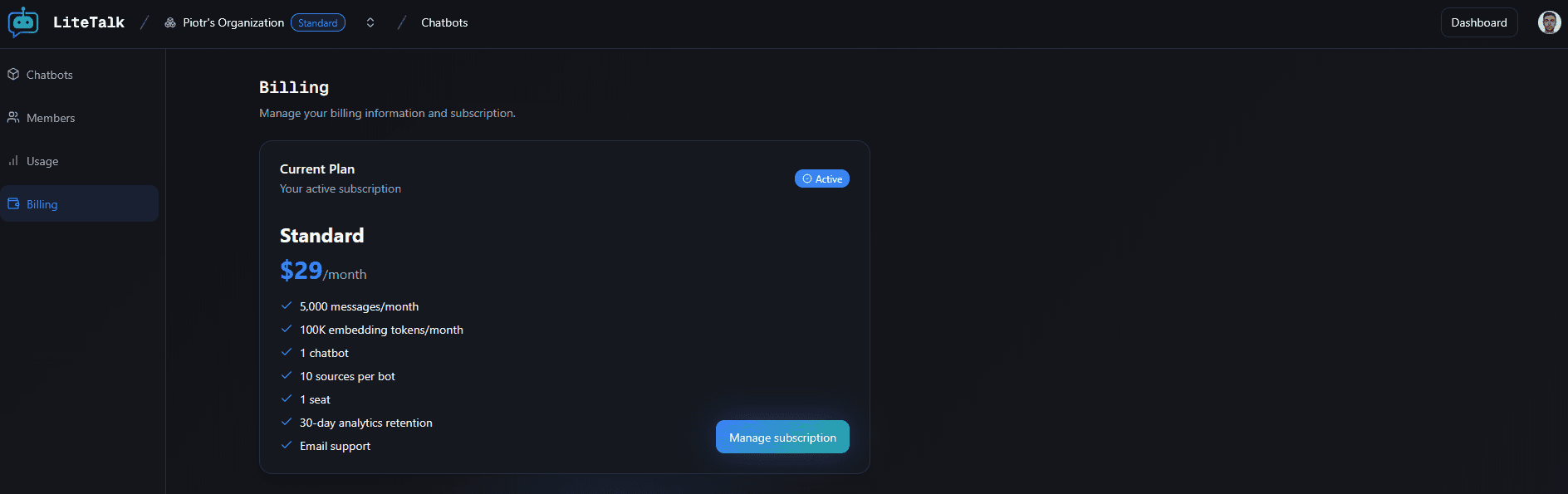
The Billing section manages your subscription and payment information. It includes:
- Current Subscription - View your active plan, status, and billing period
- Available Plans - Browse and upgrade to different plans
- Invoices - View and download past invoices
- Manage Subscription - Update payment methods, cancel, or change plans
Subscription Status
Your subscription can have different statuses:
- Active - Subscription is active and working
- Canceled - Subscription has been canceled but remains active until the end of the billing period
- Incomplete - Payment failed or subscription setup incomplete
Creating a New Organization
To create a new organization:
- Go to the Organizations page
- Click "New Organization" button
- Fill in the organization details:
- Organization name
- Industry (optional)
- Your role (optional)
- Click "Create Organization"
You'll be redirected to the new organization where you can start creating chatbots.
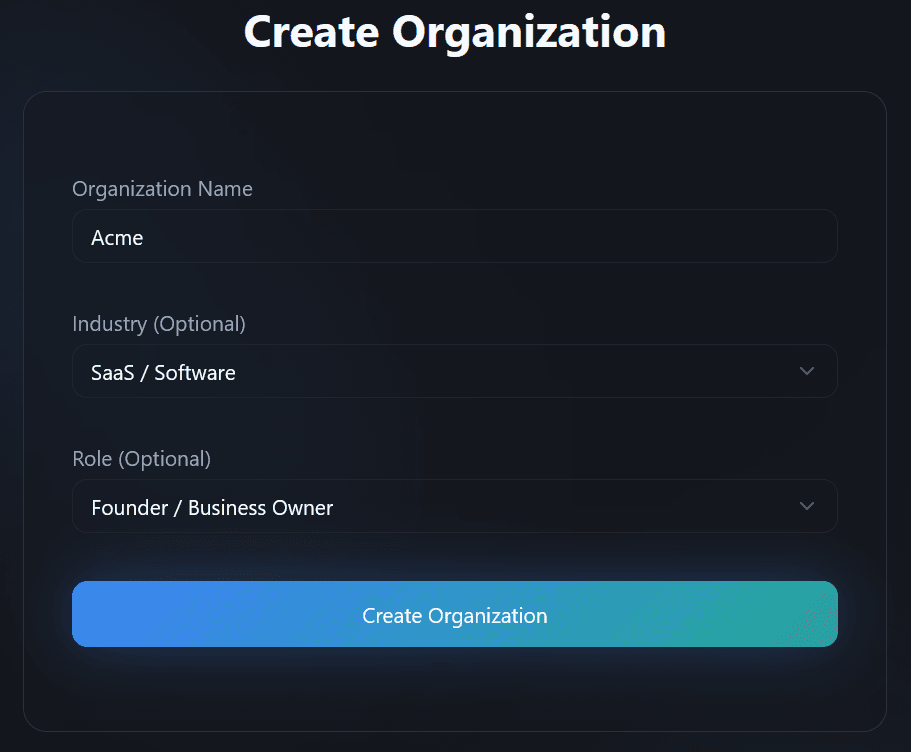
Managing Organizations
Switching Between Organizations
If you belong to multiple organizations:
- Click on your profile or organization name
- Select the organization you want to switch to
- You'll be redirected to that organization's dashboard
Organization Limits
Each organization has limits based on its subscription plan:
- Messages per month - Maximum number of messages you can send
- Characters per month - Maximum number of characters processed
- Total chatbots - Maximum number of active chatbots
- Team members - Maximum number of team members
These limits are shared across all chatbots in the organization.
Best Practices
- Organize by Project - Create separate organizations for different projects or clients
- Manage Team Access - Use appropriate roles to control what team members can do
- Monitor Usage - Regularly check usage to avoid hitting limits
- Plan Ahead - Upgrade your plan before reaching limits to avoid service interruptions
- Keep Billing Updated - Ensure payment methods are current to avoid service interruptions
Troubleshooting
Can't see an organization?
- Make sure you're logged in with the correct account
- Verify you're a member of the organization
- Check if the organization was deleted
Can't invite members?
- Only Admins and Owners can invite members
- Verify your role in the organization
- Check if you've reached the team member limit
Usage limits reached?
- Upgrade your plan to increase limits
- Wait for monthly reset (for messages and characters)
- Remove unused chatbots or members if needed
Billing issues?
- Check your payment method is valid
- Verify your subscription status
- Contact support if payment fails repeatedly
Can't access certain features?
- Check your role in the organization
- Some features require Admin or Owner permissions
- Verify your subscription plan includes the feature