
Shopify
The Shopify integration allows you to connect your Shopify store to your chatbot's knowledge base. Once connected, your product catalog is automatically synced and made available for your chatbot to reference during conversations.
Requirements
- Admin Access: Only organization admins can add Shopify stores
- Shopify Store: You need an active Shopify store
- Domain: Your Shopify store domain (e.g.,
mystore.myshopify.comor your custom domain)
Connecting Your Shopify Store
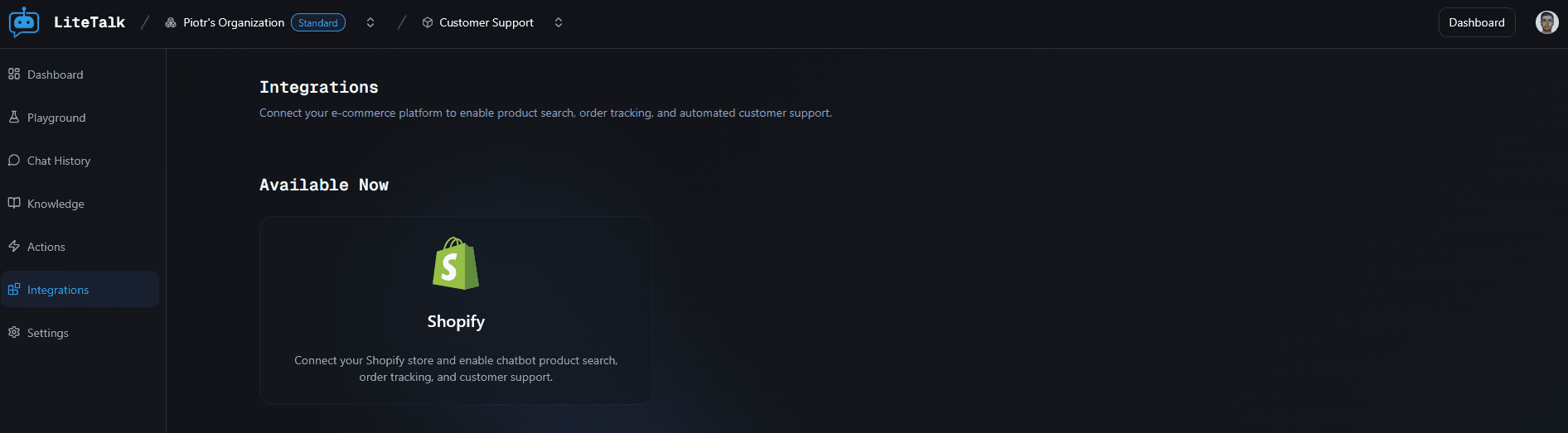
Navigate to Shopify Integration
- Go to your chatbot's settings
- Navigate to the Integrations section
- Click on Shopify
Enter Your Store Domain
- Enter your Shopify store domain in the Shopify Domain field
- You can use either:
- Your myshopify.com domain:
mystore.myshopify.com - Your custom domain:
yourdomain.com
- Your myshopify.com domain:
The system will validate the domain format before proceeding.

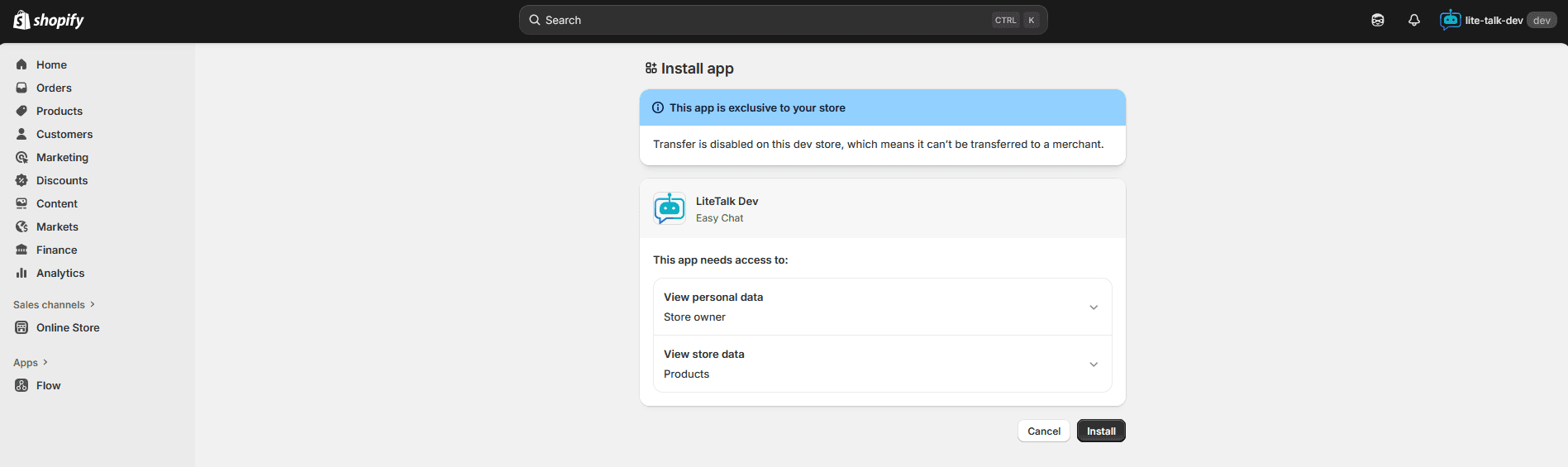
Authorize the Integration
- Click the "Add Store" button
- You'll be redirected to Shopify's authorization page
- Review the permissions requested by the app
- Click "Install app" or "Allow" to authorize the integration
After authorization, you'll be redirected back to your chatbot, and the product sync will begin automatically.
Managing Connected Stores
After connecting a store, it appears in the Shopify Stores table below the form.
Store Status
Each store goes through processing stages:
- Pending - The store is queued for product synchronization
- Processing - Products are being fetched and added to the knowledge base
- Completed - All products have been synced and are available for your chatbot
- Failed - There was an error syncing products from the store
The table automatically refreshes every few seconds to show the latest status. You don't need to refresh the page manually.

Viewing Store Details
The table displays:
- Store Name - Your Shopify store domain
- Connected At - When the store was connected (includes time)
- Total Products - Number of products synced from the store
- Status - Current processing status
Uninstalling Stores
To disconnect a Shopify store from your chatbot:
- Find the store in the table
- Click the delete icon in the Actions column
- Confirm the uninstallation
Note: You cannot uninstall stores that are currently being processed (Pending or Processing status). Wait until processing is complete before uninstalling.
Uninstalling a store will remove all associated products from your chatbot's knowledge base.
Automatic Product Sync
Once your store is connected, products are automatically synced:
- Initial Sync: All products are fetched and added to the knowledge base when the store is first connected
- Real-time Updates: When products are created, updated, or deleted in your Shopify store, the changes are automatically reflected in your chatbot's knowledge base via webhooks
- No Manual Refresh: The sync happens automatically - you don't need to manually trigger updates
Best Practices
- Store Access: Ensure you have admin access to the Shopify store you want to connect
- Product Information: Make sure your products have complete descriptions, titles, and relevant information for best chatbot responses
- Store Management: Only connect stores that are relevant to your chatbot's purpose
- Multiple Stores: You can connect multiple Shopify stores to a single chatbot
- Permissions: The integration requires read access to your product catalog
Troubleshooting
Store stuck in Processing?
- Product sync can take several minutes depending on the number of products
- If a store remains in Processing for more than 30 minutes, try disconnecting and reconnecting the store
- Check that your Shopify store is accessible and products are available
Failed to connect store?
- Ensure you have admin access to the Shopify store
- Verify that the domain you entered is correct
- Check that you completed the Shopify authorization process
- Make sure the store is active and not suspended
Store shows Failed status?
- There may have been an issue accessing your Shopify store
- Check that your Shopify store is active and accessible
- Verify that the app has the necessary permissions
- Try disconnecting and reconnecting the store
Products not syncing?
- Initial sync happens automatically after connection
- Product updates are synced via webhooks in real-time
- If products aren't updating, check that webhooks are properly configured in your Shopify store
- Ensure your store connection is still active (not uninstalled)
Authorization failed?
- Make sure you clicked "Install app" or "Allow" on the Shopify authorization page
- Check that you have admin access to the store
- Try the connection process again from the beginning