
API Endpoints
The API Endpoints feature allows you to connect external APIs to your chatbot's knowledge base. The system automatically fetches data from these endpoints and makes it available for your chatbot to reference during conversations.
Supported HTTP Methods
You can connect APIs using the following HTTP methods:
- GET - Retrieve data from the API
- POST - Send data to the API
- PUT - Update data via the API
- DELETE - Delete data via the API
- PATCH - Partially update data via the API
Adding API Endpoints
Navigate to API Endpoints
- Go to your chatbot's settings
- Navigate to the Knowledge section
- Click on API Endpoints
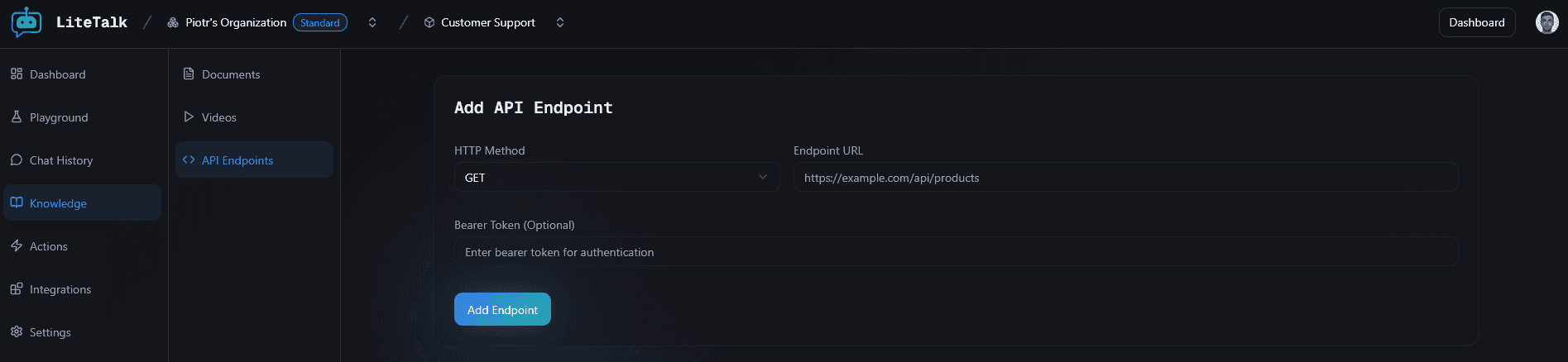
Configure Endpoint Details
Fill in the endpoint configuration:
- HTTP Method - Select the HTTP method (GET, POST, PUT, DELETE, or PATCH)
- Endpoint URL - Enter the full API endpoint URL (e.g.,
https://example.com/api/products) - Bearer Token (Optional) - If your API requires authentication, enter the bearer token
The bearer token field is optional and only needed if your API endpoint requires authentication.
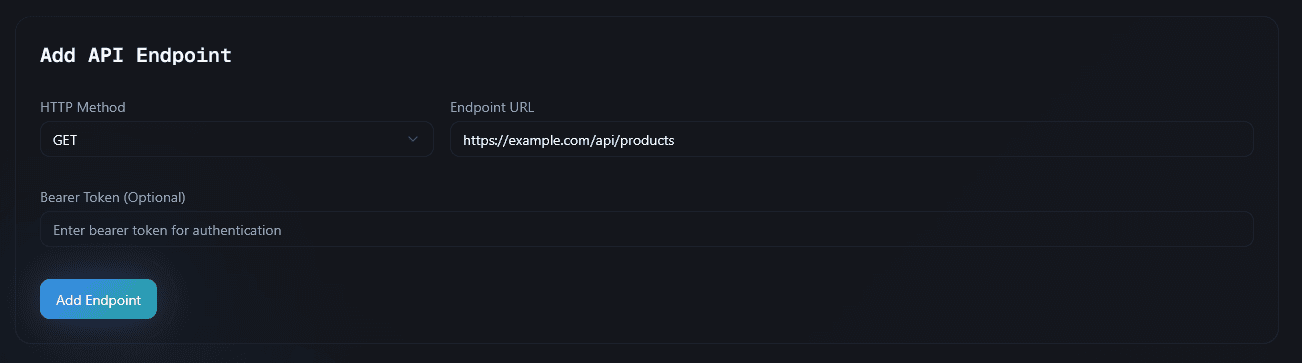
Add Endpoint
Click the "Add Endpoint" button. The system will:
- Validate the endpoint URL
- Check if the endpoint already exists
- Store the endpoint configuration
- Queue it for data fetching
You'll see a confirmation message when the endpoint is added successfully.
Managing Connected Endpoints
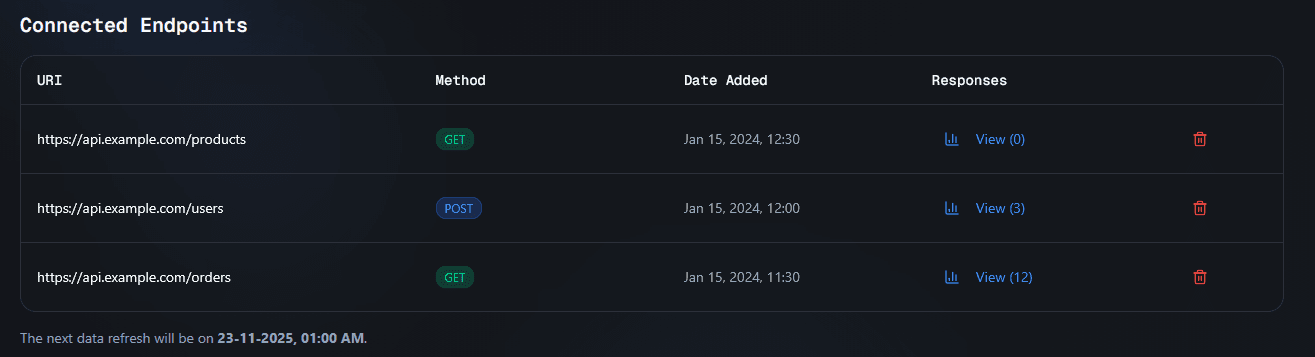
After adding an endpoint, it appears in the Connected Endpoints table below the form.
Viewing Endpoint Details
The table displays:
- URI - The API endpoint URL
- Method - HTTP method with color-coded badge:
- GET - Green
- POST - Blue
- PUT - Amber
- DELETE - Red
- PATCH - Gray
- Date Added - When the endpoint was added (includes time)
- Responses - Number of responses fetched from this endpoint with a link to view them
Viewing API Responses
To view responses fetched from an endpoint:
- Find the endpoint in the table
- Click the "View (X)" button in the Responses column, where X is the number of responses
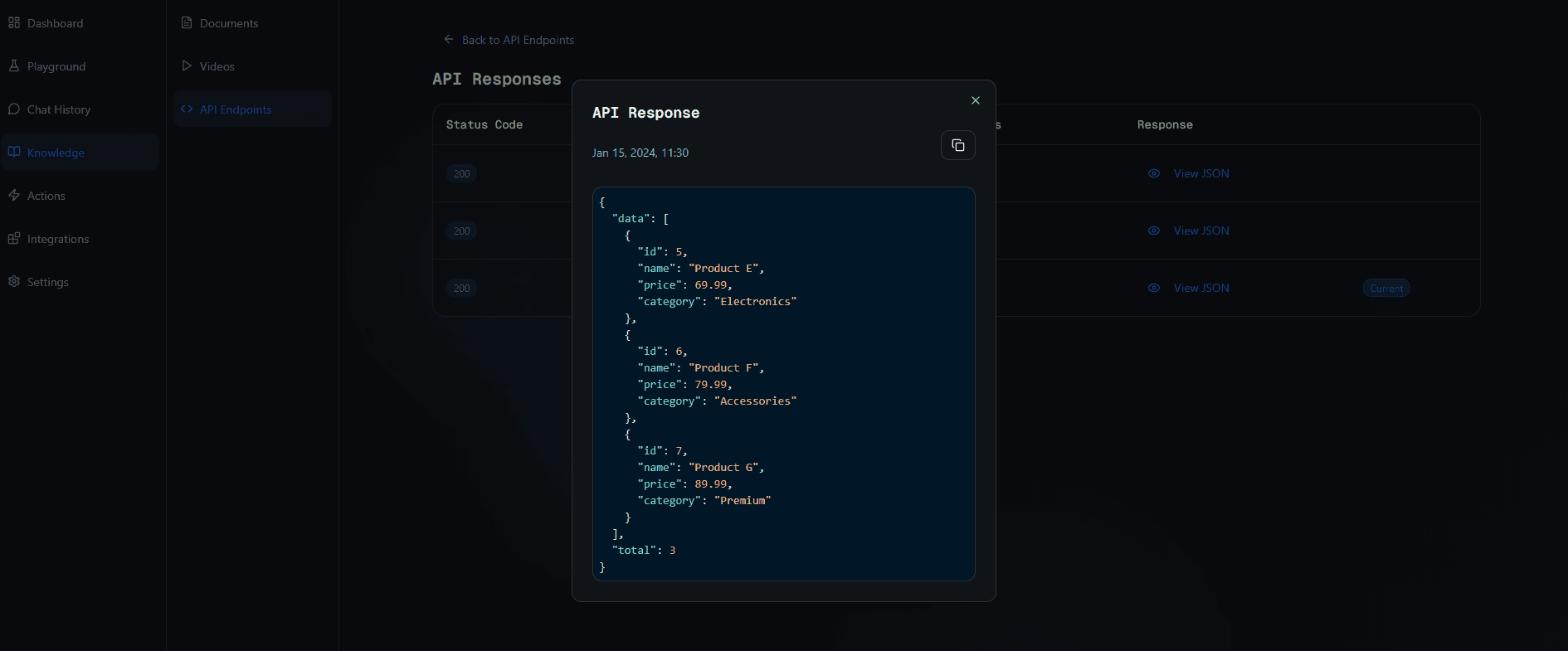
- You'll be taken to a page showing all responses fetched from that endpoint
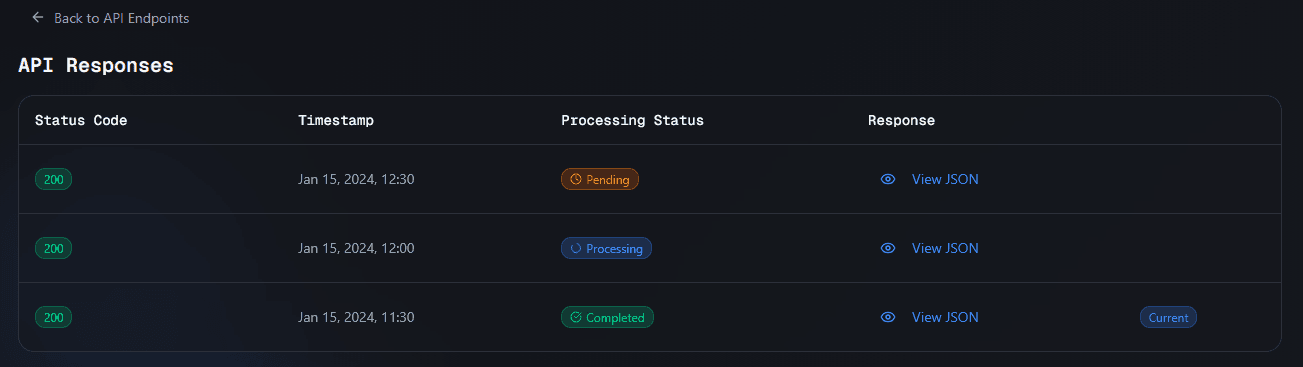
Each response shows:
- The response data (formatted JSON)
- Status code from the API
- Processing status
- When it was fetched
Deleting Endpoints
To remove an endpoint from your knowledge base:
- Find the endpoint in the table
- Click the delete icon in the Actions column
- Confirm the deletion
Note: Deleting an endpoint will also remove all associated responses from your knowledge base.
Data Refresh
The system automatically refreshes data from your connected endpoints once per day. The next refresh time is displayed below the endpoints table.
- Data is fetched automatically without manual intervention
- Responses are processed and added to your chatbot's knowledge base
- You can view the refresh schedule at the bottom of the endpoints table
Best Practices
- API Authentication: Always use bearer tokens for secured APIs to ensure proper access
- Endpoint Selection: Choose endpoints that return relevant data your chatbot should know about
- Response Size: Be mindful of API response sizes - very large responses may take longer to process
- Rate Limits: Consider your API's rate limits when adding multiple endpoints
- Error Handling: Ensure your APIs return proper error responses so the system can handle failures gracefully
- Documentation: Keep track of which endpoints you've added and what data they provide
Troubleshooting
Endpoint not fetching data?
- Check that the endpoint URL is correct and accessible
- Verify that the HTTP method matches what the API expects
- Ensure the bearer token (if required) is valid and not expired
- Wait for the next scheduled refresh (data is fetched once daily)
Responses not appearing?
- Responses are fetched automatically once per day
- Check the endpoint's response page to see if any responses were fetched
- Verify that the API endpoint is returning valid JSON responses
Endpoint shows errors?
- Verify the API endpoint is accessible and responding correctly
- Check that the HTTP method is appropriate for the endpoint
- Ensure authentication credentials (bearer token) are correct if required
- Review the API documentation to confirm the endpoint format
Duplicate endpoint error?
- Each endpoint can only be added once per chatbot
- If you need to update an endpoint, delete the old one and add it again with new settings