
Documents
The Documents feature allows you to add files to your chatbot's knowledge base. Once uploaded, these documents are processed and made available for your chatbot to reference during conversations.
Supported File Types
You can upload the following file formats:
- PDF (.pdf)
- Word Documents (.docx)
- Text Files (.txt)
- CSV Files (.csv)
- JSON Files (.json)
Uploading Documents
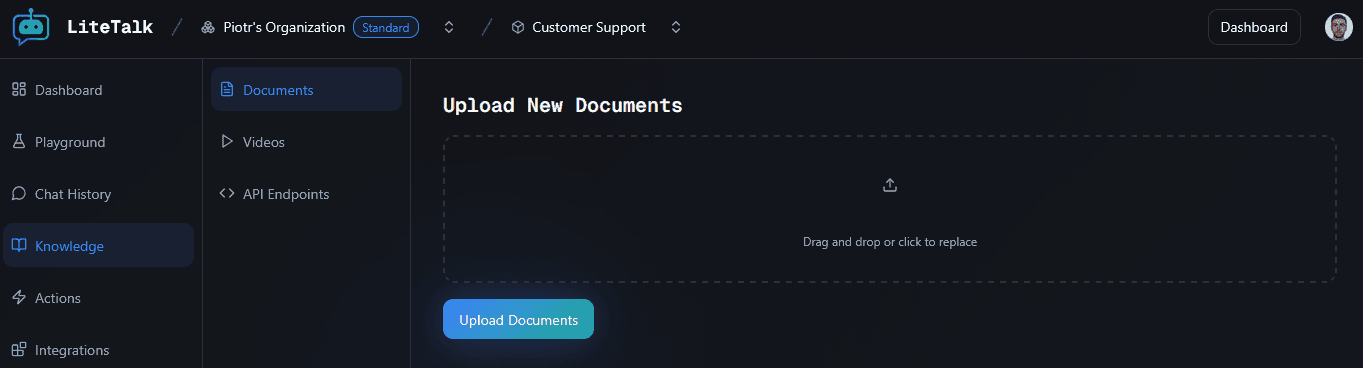
Navigate to Documents
- Go to your chatbot's settings
- Navigate to the Knowledge section
- Click on Documents
Select Files
You can upload documents in two ways:
Option A: Drag and Drop
- Drag one or more files from your computer
- Drop them into the upload area
Option B: Click to Browse
- Click on the upload area
- Select files from your file browser
You can upload up to 5 files at once. The upload area will show you which files you've selected.

Upload
Once you've selected your files, click the "Upload Documents" button. You'll see a confirmation message when the upload is successful.
Managing Uploaded Documents
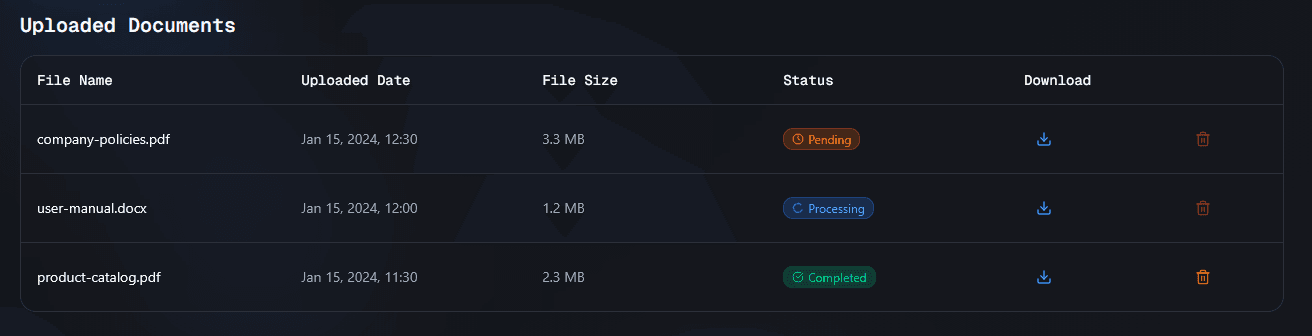
After uploading, your documents appear in the Uploaded Documents table below the upload form.
Document Status
Each document goes through processing stages:
- Pending - The document is queued for processing
- Processing - The document is being analyzed and added to the knowledge base
- Completed - The document is ready and available for your chatbot to use
- Failed - There was an error processing the document
The table automatically refreshes every few seconds to show the latest status. You don't need to refresh the page manually.
Viewing Document Details
The table displays:
- File Name - The name of your uploaded file
- Uploaded Date - When the file was uploaded (includes time)
- File Size - The size of the file
- Status - Current processing status
Downloading Documents
To download a document:
- Find the document in the table
- Click the download icon in the Download column
- The file will be saved to your computer
Deleting Documents
To remove a document from your knowledge base:
- Find the document in the table
- Click the delete icon in the Actions column
- Confirm the deletion
Note: You cannot delete documents that are currently being processed (Pending or Processing status). Wait until processing is complete before deleting.
Best Practices
- File Size: Keep files reasonably sized for faster processing
- File Quality: Ensure your documents are clear and readable
- File Format: Use PDF or DOCX for best compatibility
- Content: Upload documents that contain relevant information you want your chatbot to know
- Organization: Use descriptive file names to easily identify documents later
Troubleshooting
Document stuck in Processing?
- Processing can take a few minutes depending on file size
- If a document remains in Processing for more than 10 minutes, try uploading it again
Upload failed?
- Check that your file is one of the supported formats
- Ensure the file isn't corrupted
- Try uploading a smaller file or fewer files at once
Document shows Failed status?
- The file may be corrupted or in an unsupported format
- Try converting the file to PDF or DOCX format
- Contact support if the issue persists