
Videos
The Videos feature allows you to add YouTube videos to your chatbot's knowledge base. The system automatically extracts transcripts from YouTube videos and makes them available for your chatbot to reference during conversations.
Supported Video Sources
You can add videos from YouTube by providing the video URL. The video must have captions or transcripts available on YouTube for the system to process it.
Adding Videos

Enter YouTube URL
- Find the YouTube video you want to add
- Copy the video URL from your browser's address bar
- Paste the URL into the YouTube Video URL field
The URL should look like: https://www.youtube.com/watch?v=... or https://youtu.be/...
Add Video
Click the "Add Video" button. The system will:
- Validate the YouTube URL
- Check if the video has transcripts available
- Extract the video metadata (title, thumbnail, published date)
- Queue the video for processing
You'll see a confirmation message when the video is added successfully.
Managing Added Videos
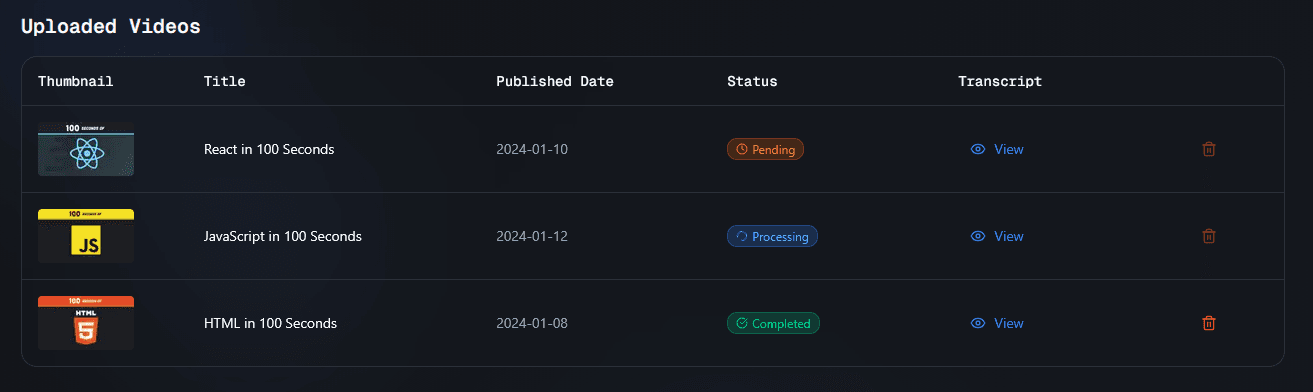
After adding a video, it appears in the Uploaded Videos table below the form.
Video Status
Each video goes through processing stages:
- Pending - The video is queued for processing
- Processing - The video transcript is being analyzed and added to the knowledge base
- Completed - The video is ready and available for your chatbot to use
- Failed - There was an error processing the video (usually because transcripts are unavailable)
The table automatically refreshes every few seconds to show the latest status. You don't need to refresh the page manually.
Viewing Video Details
The table displays:
- Thumbnail - Preview image of the video
- Title - Clickable link that opens the video on YouTube
- Published Date - When the video was published on YouTube
- Status - Current processing status
- Transcript - Button to view the extracted transcript
Viewing Transcripts
To view a video's transcript:
- Find the video in the table
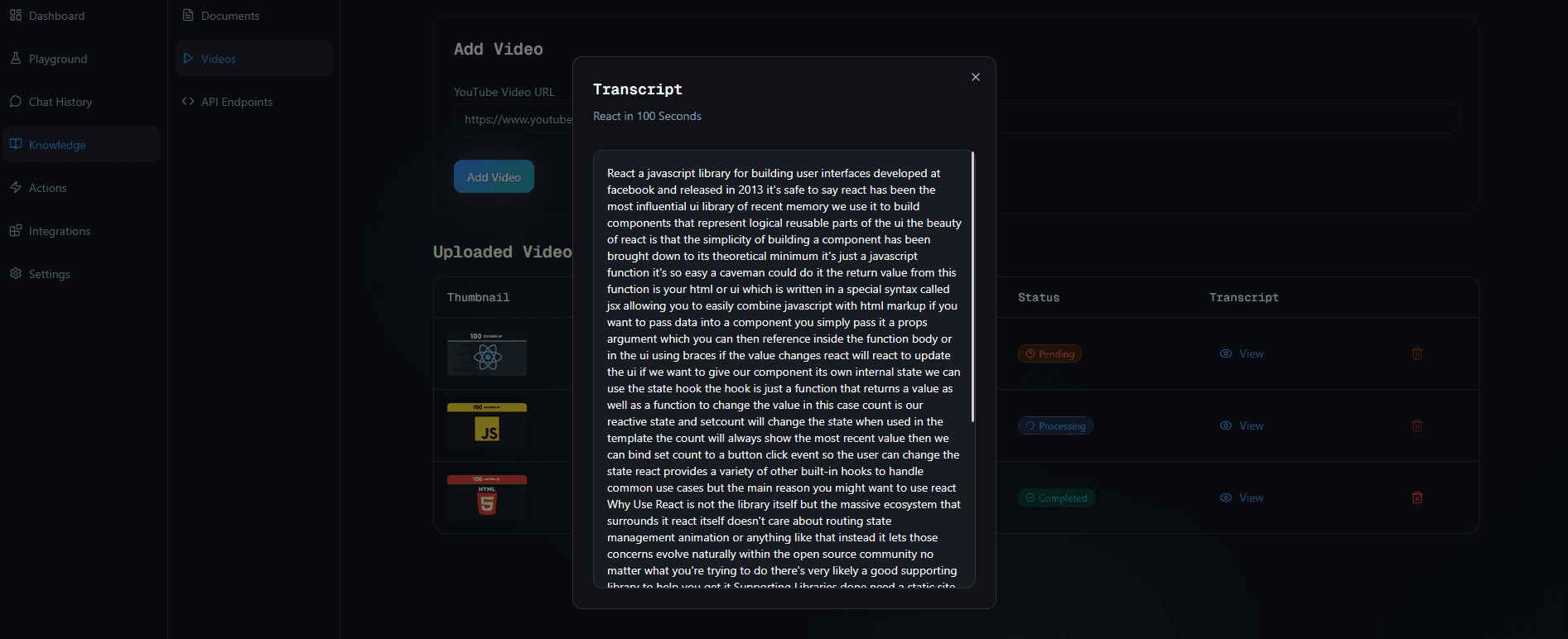
- Click the "View" button in the Transcript column
- A dialog will open showing the full transcript extracted from the video
The transcript is what your chatbot uses to answer questions about the video content.
Deleting Videos
To remove a video from your knowledge base:
- Find the video in the table
- Click the delete icon in the Actions column
- Confirm the deletion
Note: You cannot delete videos that are currently being processed (Pending or Processing status). Wait until processing is complete before deleting.
Best Practices
- Video Selection: Choose videos with clear audio and available captions/transcripts
- Content Relevance: Add videos that contain relevant information you want your chatbot to know
- Video Length: Shorter videos process faster, but longer videos can provide more comprehensive information
- Transcript Quality: Videos with accurate captions will provide better results for your chatbot
- Organization: Use descriptive video titles to easily identify videos later
Troubleshooting
Video stuck in Processing?
- Processing can take a few minutes depending on video length
- If a video remains in Processing for more than 10 minutes, try adding it again
Failed to add video?
- Ensure the YouTube URL is valid and the video is publicly accessible
- Check that the video has captions or transcripts available (some videos may not have them)
- Make sure the video hasn't already been added to this chatbot
Video shows Failed status?
- The video may not have transcripts available on YouTube
- The video might be private or restricted
- Try adding a different video or contact support if the issue persists
Transcript not available?
- Not all YouTube videos have transcripts
- Videos with automatic captions may not always be accurate
- Look for videos that explicitly have captions enabled