
Websites
The Websites feature allows you to add website content to your chatbot's knowledge base. The system automatically scrapes and extracts content from websites, making it available for your chatbot to reference during conversations.
Supported Websites
You can add any publicly accessible website by providing its URL. The system will scrape the main content from the webpage and add it to your chatbot's knowledge base.
Adding a Website
Navigate to Websites
- Go to your chatbot's settings
- Navigate to the Knowledge section
- Click on Websites

Enter Website URL
- Find the website you want to add
- Copy the website URL from your browser's address bar
- Paste the URL into the Website URL field
The URL should be a valid web address, for example: https://example.com
Add Website
Click the "Add Website" button. The system will:
- Validate the website URL
- Scrape the content from the webpage
- Queue the website for processing
You'll see a confirmation message when the website is added successfully.
Managing Added Websites
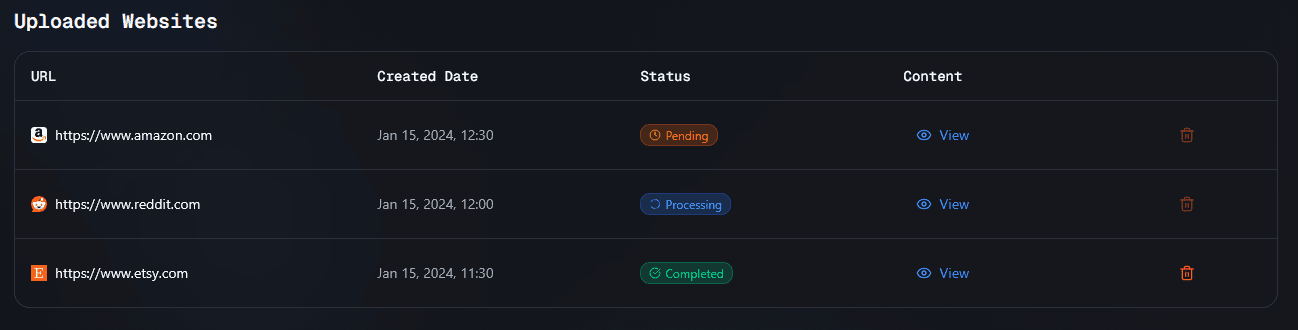
After adding a website, it appears in the Uploaded Websites table below the form.
Website Status
Each website goes through processing stages:
- Pending - The website is queued for processing
- Processing - The website content is being analyzed and added to the knowledge base
- Completed - The website is ready and available for your chatbot to use
- Failed - There was an error processing the website (usually due to access issues or invalid content)
The table automatically refreshes every few seconds to show the latest status. You don't need to refresh the page manually.
Viewing Website Details
The table displays:
- URL - Clickable link to the website
- Created Date - When the website was added to your knowledge base
- Status - Current processing status
- Content - Button to view the scraped content
Viewing Website Content
To view the scraped content from a website:
- Find the website in the table
- Click the "View" button in the Content column
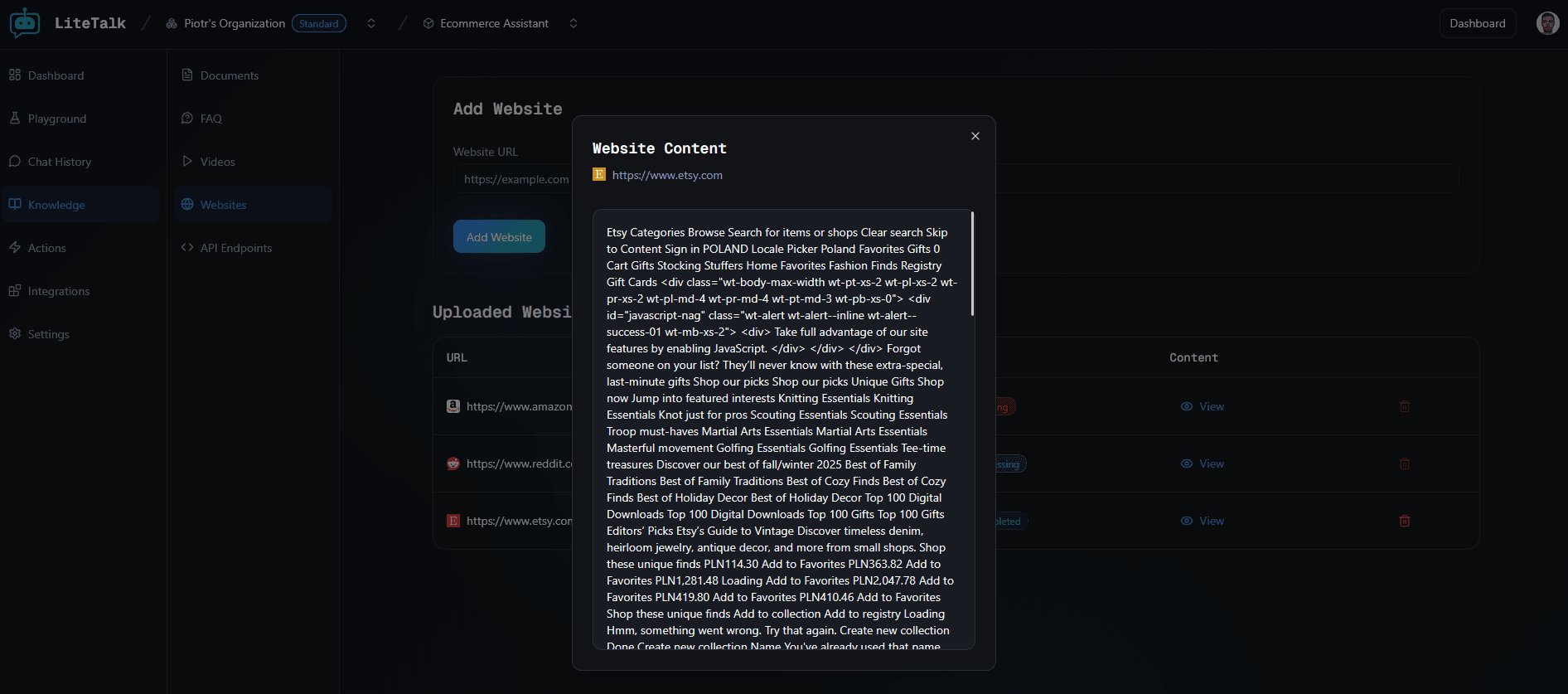
- A dialog will open showing the full content extracted from the website
The content shown is what your chatbot uses to answer questions about the website.
Deleting Websites
To remove a website from your knowledge base:
- Find the website in the table
- Click the delete icon in the Actions column
- Confirm the deletion
Note: You cannot delete websites that are currently being processed (Pending or Processing status). Wait until processing is complete before deleting.
Best Practices
- URL Selection: Use the main page URL or specific pages with relevant content
- Content Quality: Websites with clear, well-structured content work best
- Accessibility: Ensure the website is publicly accessible (no login required)
- Content Relevance: Add websites that contain relevant information you want your chatbot to know
- Avoid Duplicates: Don't add the same website URL twice to the same chatbot
Troubleshooting
Website stuck in Processing?
- Processing can take a few minutes depending on the website size
- If a website remains in Processing for more than 10 minutes, try adding it again
Failed to add website?
- Ensure the website URL is valid and publicly accessible
- Check that the website doesn't require authentication or special access
- Make sure the website hasn't already been added to this chatbot
- Verify the website is accessible and not blocked by robots.txt
Website shows Failed status?
- The website may require authentication or be behind a paywall
- The website might be blocking web scrapers
- The URL might be invalid or the website might be down
- Try adding a different website or contact support if the issue persists
Content not available or incomplete?
- Some websites use JavaScript to load content dynamically, which may not be fully captured
- Complex websites with heavy JavaScript frameworks may not scrape completely
- Consider adding multiple pages from the same website if needed