
WooCommerce
Manage Store
After connecting a store, you'll see a dashboard with your store information and several tabs.
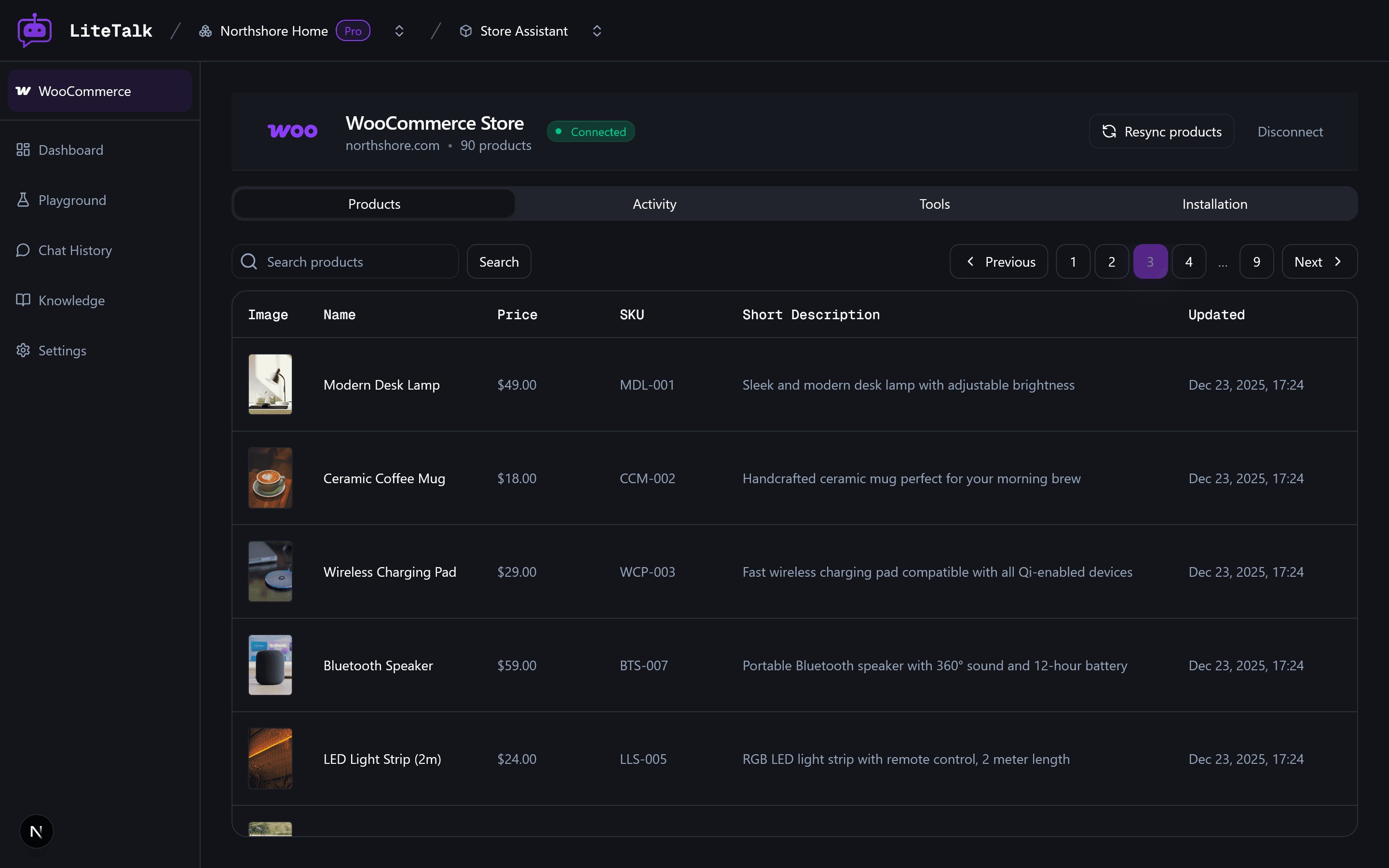
Products
View all synced products from your WooCommerce store. The table shows product information and sync status. You can:
- Browse all synced products
- See product details
- Trigger a resync if needed
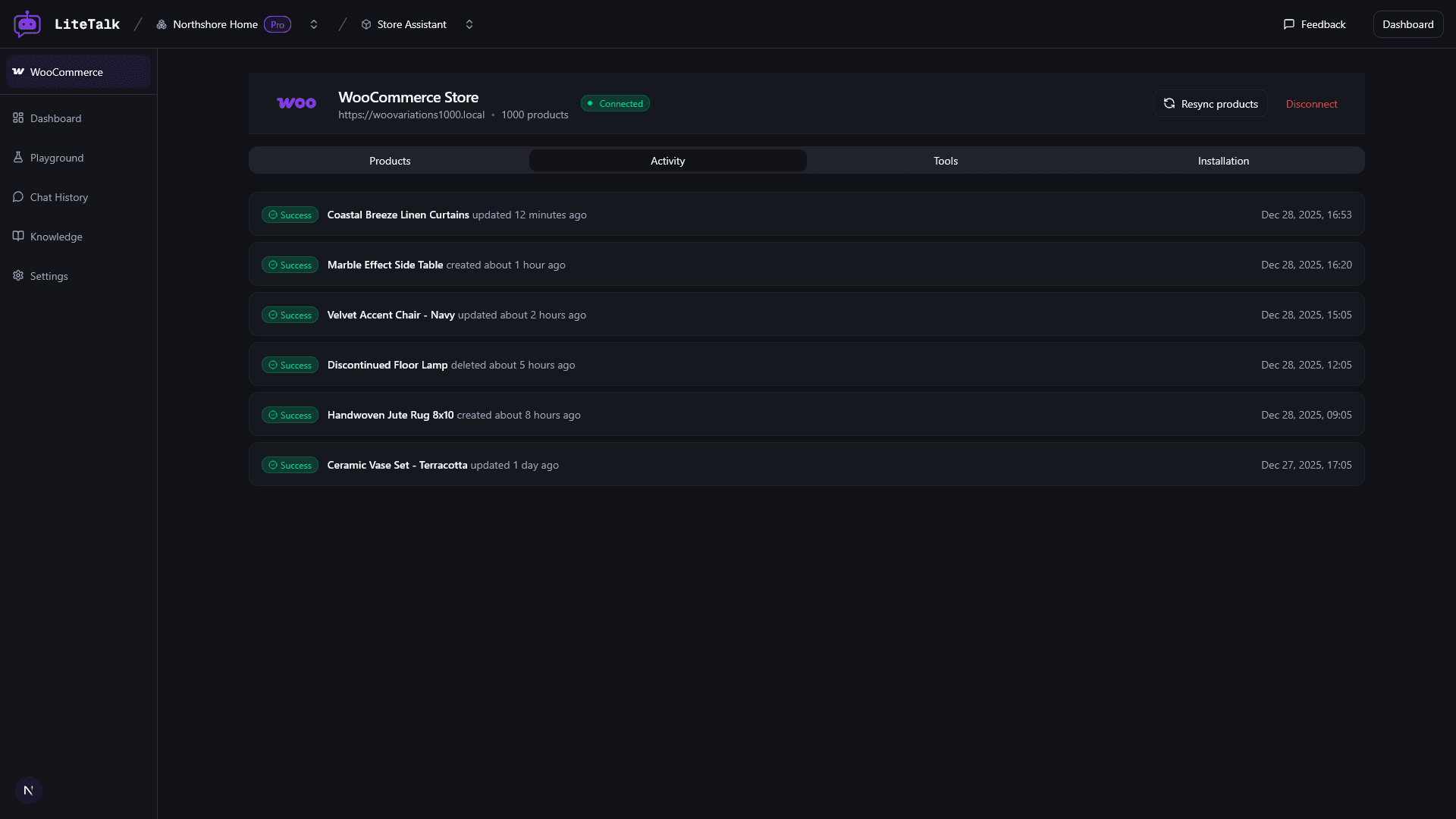
Activity
Monitor webhook deliveries from your WooCommerce store. This shows real-time updates when products are created, updated, or deleted in your store.
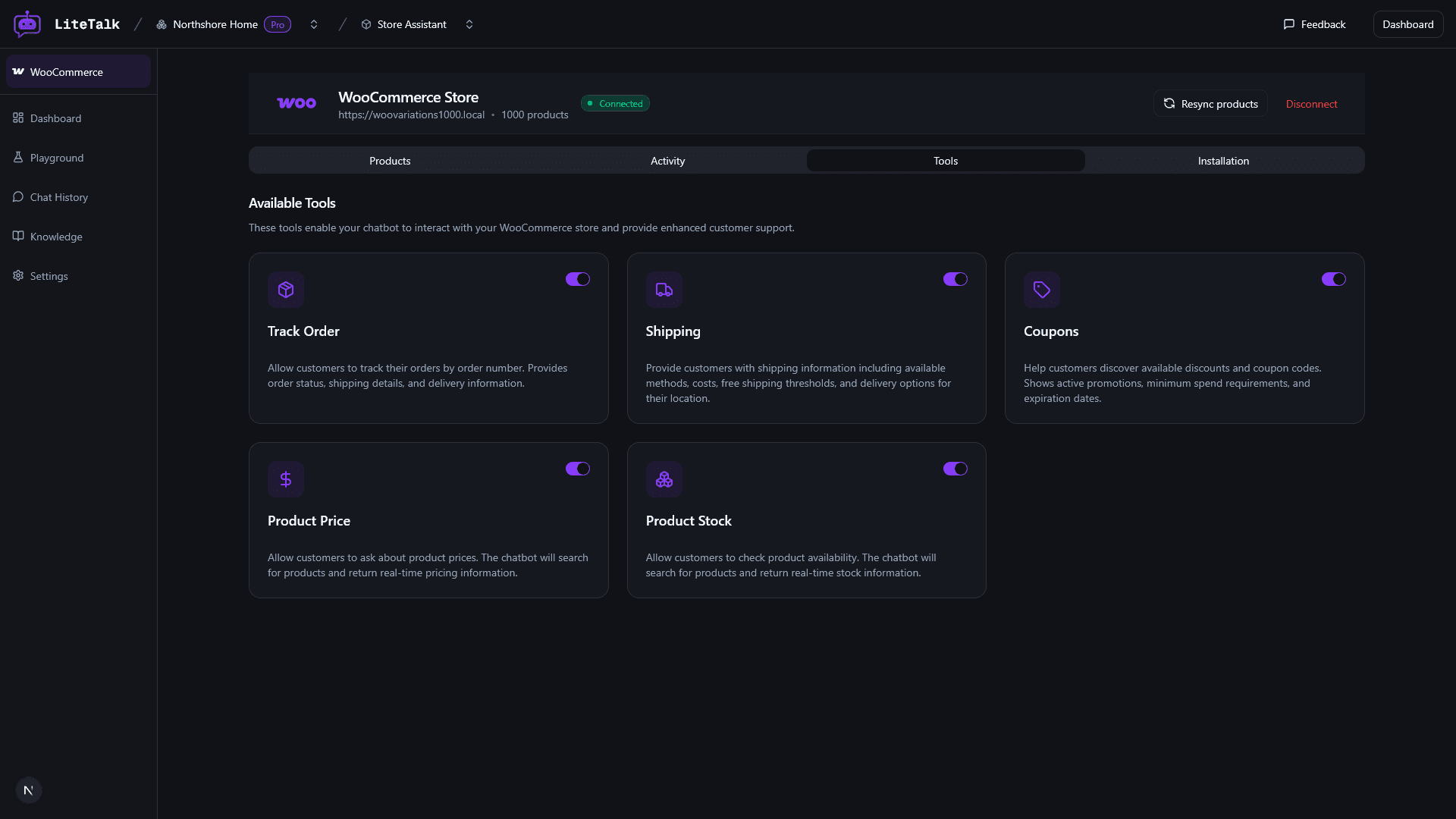
Tools
Enable or disable chatbot tools that enhance customer support:
| Tool | Description |
|---|---|
| Track Order | Allow customers to track their orders by order number. Provides order status, shipping details, and delivery information. |
| Shipping | Provide customers with shipping information including available methods, costs, free shipping thresholds, and delivery options. |
| Coupons | Help customers discover available discounts and coupon codes. Shows active promotions, minimum spend requirements, and expiration dates. |
| Product Price | Allow customers to check current prices for products, including sale prices and discounts. |
| Product Stock | Let customers check product availability and stock status. |
Automatic Product Sync
Once your store is connected, products are automatically synced:
- Initial Sync: All products are fetched and added to the knowledge base when the store is first connected
- Real-time Updates: When products are created, updated, or deleted in your WooCommerce store, the changes are automatically reflected via webhooks
- Manual Resync: You can trigger a full resync at any time using the "Resync products" button