
Playground
Test your chatbot in a sandbox environment with saved prompts.
The Playground is a testing environment where you can interact with your chatbot and test different scenarios before deploying it to your users. It allows you to save frequently used prompts for quick testing and iteration.
What is the Playground?
The Playground provides:
- Sandbox Environment - Test your chatbot without affecting real user conversations
- Saved Prompts - Store prompts you want to test repeatedly
- Full Chat Interface - Interact with your chatbot exactly as users would
- Quick Testing - Copy and paste saved prompts for rapid testing
Accessing the Playground
To access the Playground:
- Navigate to your chatbot from the dashboard
- Click on Playground in the sidebar navigation
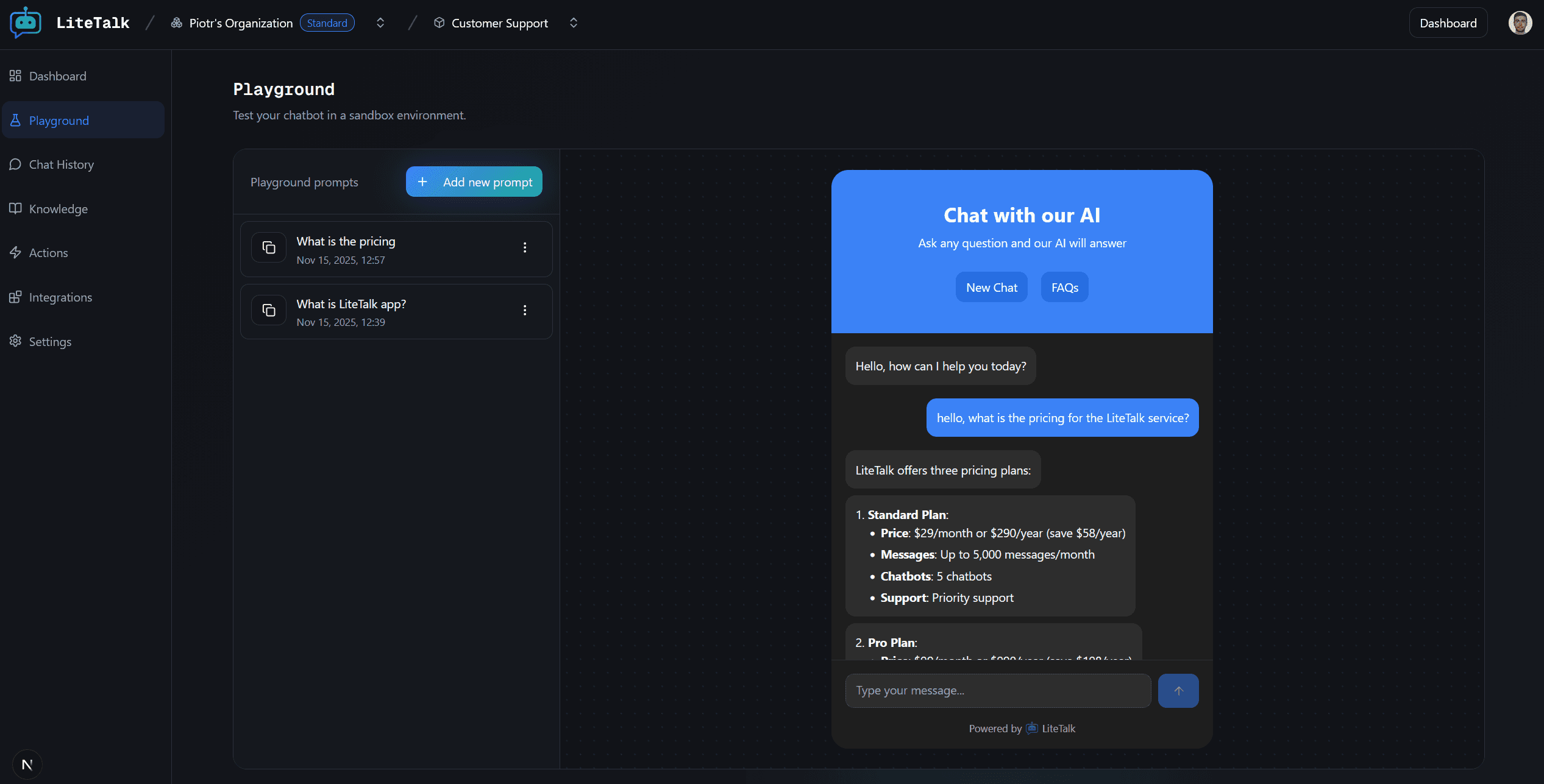
- The playground interface will load with the chatbot on the right and saved prompts on the left
Understanding the Interface
The Playground is divided into two main sections:
Left Sidebar - Saved Prompts
The left sidebar displays all your saved playground prompts. Each prompt shows:
- The prompt text (truncated if long)
- Creation date and time
- Copy button to quickly copy the prompt
- Menu options to edit or delete
Right Side - Chat Interface
The right side shows a full chatbot interface where you can:
- Type messages and interact with your chatbot
- See responses in real-time
- Test how your chatbot handles different questions
- Use actions if configured
Creating a Saved Prompt
Saved prompts let you quickly test common questions or scenarios without typing them each time.
Click Add New Prompt
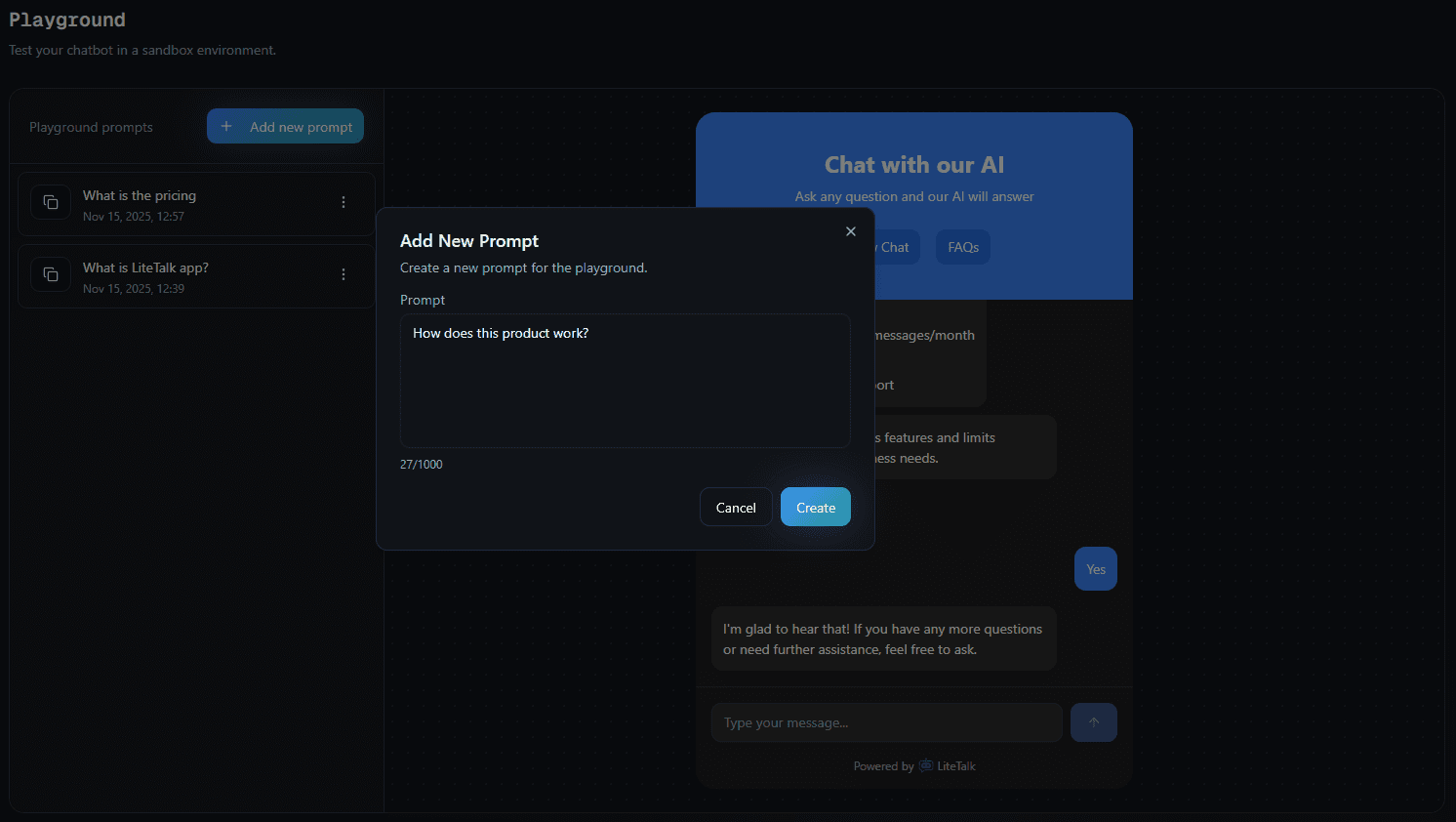
If you have existing prompts, click the "Add new prompt" button in the top right of the prompts sidebar. If you don't have any prompts yet, you'll see an empty state with an "Add prompt" button.
Enter Your Prompt
In the dialog that appears, enter the prompt text you want to save. This can be:
- A question you want to test
- A scenario you want to verify
- A common user query
The prompt can be up to 1000 characters. You'll see a character counter showing how many characters you've used.
Save the Prompt
Click "Create" to save the prompt. It will appear in your prompts list immediately.
Using Saved Prompts
Once you've saved prompts, you can use them to quickly test your chatbot:
- Copy a Prompt - Click the copy icon on any prompt card to copy the prompt text to your clipboard
- Paste in Chat - Paste the copied prompt into the chat interface and send it
- Test Response - Observe how your chatbot responds to the prompt
This workflow lets you quickly test multiple scenarios without retyping questions.
Managing Saved Prompts
Editing a Prompt
To modify an existing prompt:
- Click the three-dot menu (⋮) on the prompt card
- Select "Edit"
- Modify the prompt text in the dialog
- Click "Save" to update it
Deleting a Prompt
To remove a prompt:
- Click the three-dot menu (⋮) on the prompt card
- Select "Delete"
- Confirm the deletion
Note: Deleted prompts cannot be recovered.
Testing Your Chatbot
The Playground is perfect for:
- Testing Knowledge Base - Verify that your chatbot correctly answers questions based on your documents, videos, and API endpoints
- Testing Actions - Check if your actions appear and work correctly
- Testing Responses - Ensure your chatbot provides accurate and helpful responses
- Testing Edge Cases - Try unusual questions or scenarios to see how your chatbot handles them
- Iterating on Settings - Make changes to your chatbot settings and test them immediately
Best Practices for Testing
- Test Common Questions - Save prompts for questions users are likely to ask
- Test Edge Cases - Include prompts that test unusual scenarios
- Test After Changes - Always test in the Playground after updating knowledge, settings, or actions
- Test Different Phrasings - Save variations of the same question to ensure your chatbot handles them all
- Test Actions - Verify that actions appear when expected and work correctly
Differences from Production Chat
The Playground is isolated from your production chatbot:
- Separate Conversations - Playground conversations don't appear in Analytics
- No User Impact - Testing in Playground doesn't affect real users
- Saved Prompts - Only available in Playground, not in production
- Full Access - You can test all features including actions and knowledge base
Troubleshooting
Chatbot not responding?
- Check that your chatbot is enabled in Settings
- Verify your knowledge base has content
- Ensure your system prompt is configured correctly
Prompts not saving?
- Make sure you're logged in with member permissions
- Check that the prompt is under 1000 characters
- Try refreshing the page
Can't see the chat interface?
- Try refreshing the page
- Check your browser console for errors
- Ensure you have the necessary permissions
Actions not appearing?
- Verify that actions are enabled in your chatbot settings
- Check that actions are configured correctly
- Test if actions appear in production to compare behavior