
Actions
Create interactive actions that your chatbot can display to users during conversations.
Actions allow your chatbot to present interactive buttons or options to users during conversations. When a user clicks an action, it can trigger a prompt, open a link, or call an API endpoint. Actions help guide users and provide quick access to important features or information.
Understanding Actions
Actions appear as buttons in your chatbot interface that users can click. They're displayed based on the chatbot's context and can help:
- Guide users to specific information
- Provide quick access to external resources
- Trigger API calls to fetch dynamic data
- Offer shortcuts to common tasks
Action Types
There are three types of actions you can create:
Prompt Action
A Prompt action sends a predefined message to the chatbot when clicked. This is useful for:
- Asking common questions automatically
- Triggering specific chatbot responses
- Guiding conversations in a particular direction
Example: An action named "Discounts" that sends "Tell me about current discounts" to the chatbot.
Link Action
A Link action opens a URL in a new tab when clicked. It also sends a prompt to the chatbot. This is useful for:
- Directing users to external pages
- Linking to documentation or resources
- Providing access to forms or tools
Example: An action that opens a discount page and tells the chatbot "The user wants to see discounts."
API Call Action
An API Call action makes an HTTP request to an external API endpoint and includes the response in the chatbot's context. This is useful for:
- Fetching real-time data
- Integrating with external services
- Displaying dynamic information
Example: An action that calls your product API and shows the chatbot the current product inventory.
Creating an Action
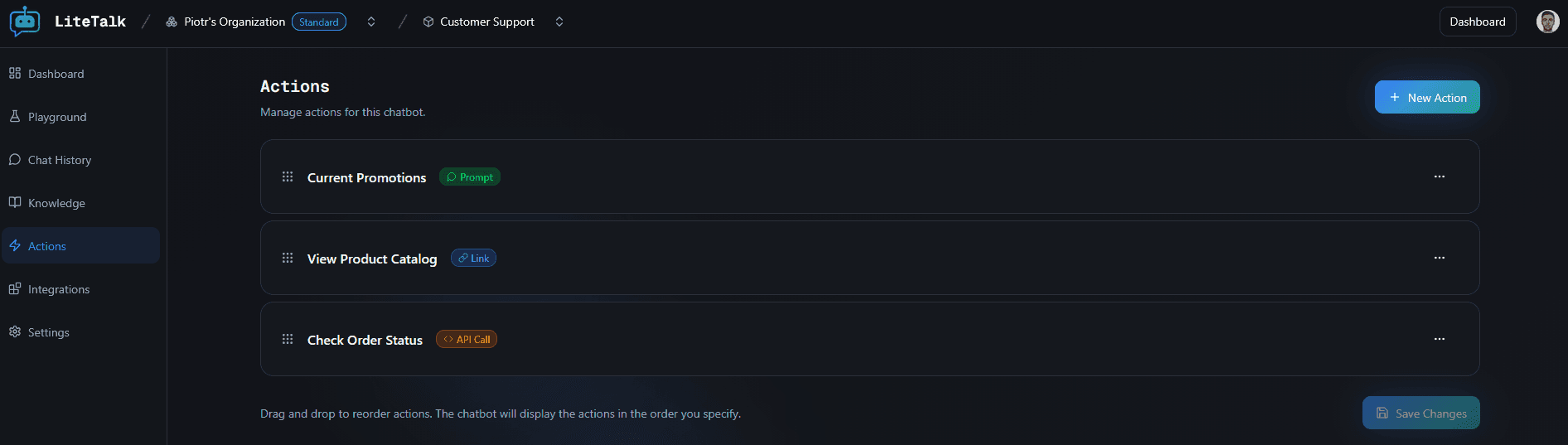
Click New Action
Click the "New Action" button in the top right corner of the Actions page.
Fill in Basic Information
Enter the following required information:
- Name - The text that will appear on the action button (e.g., "Discounts", "Contact Support")
- Type - Select one of the three action types: Prompt, Link, or API Call
Configure Action Type
The form will change based on the type you selected:
For Prompt Actions:
- Prompt - The message that will be sent to the chatbot when the action is clicked
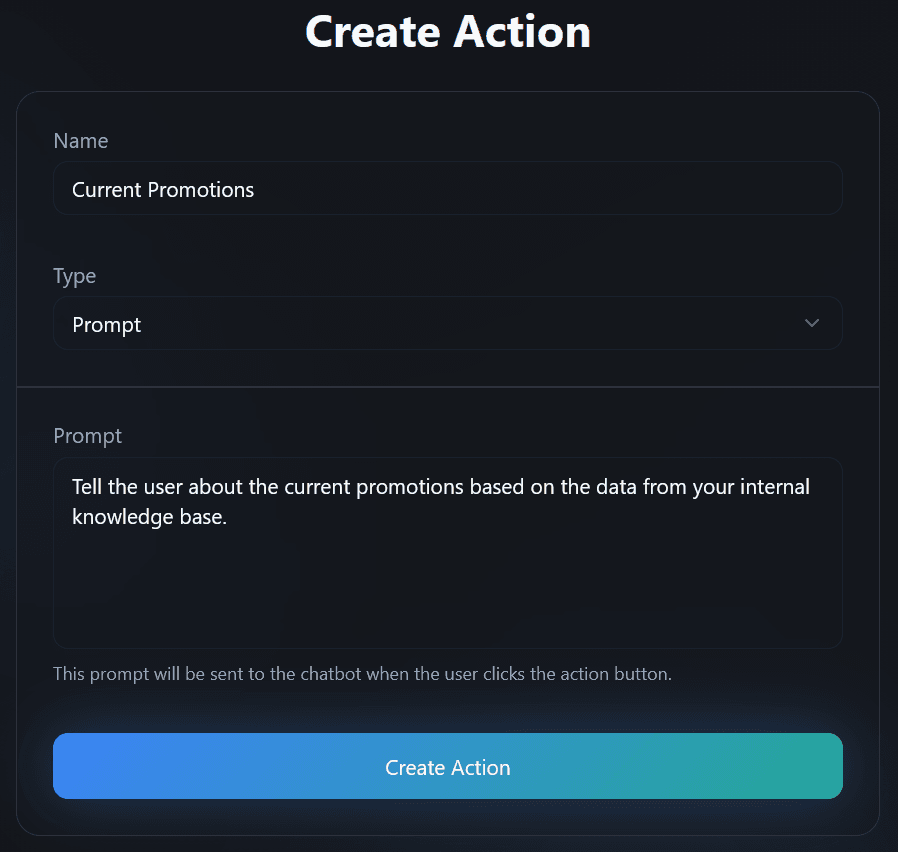
For Link Actions:
- Link - The URL to open (must be a valid URL)
- Label - The text to display on the link button
- Prompt - The message that will be sent to the chatbot when the action is clicked
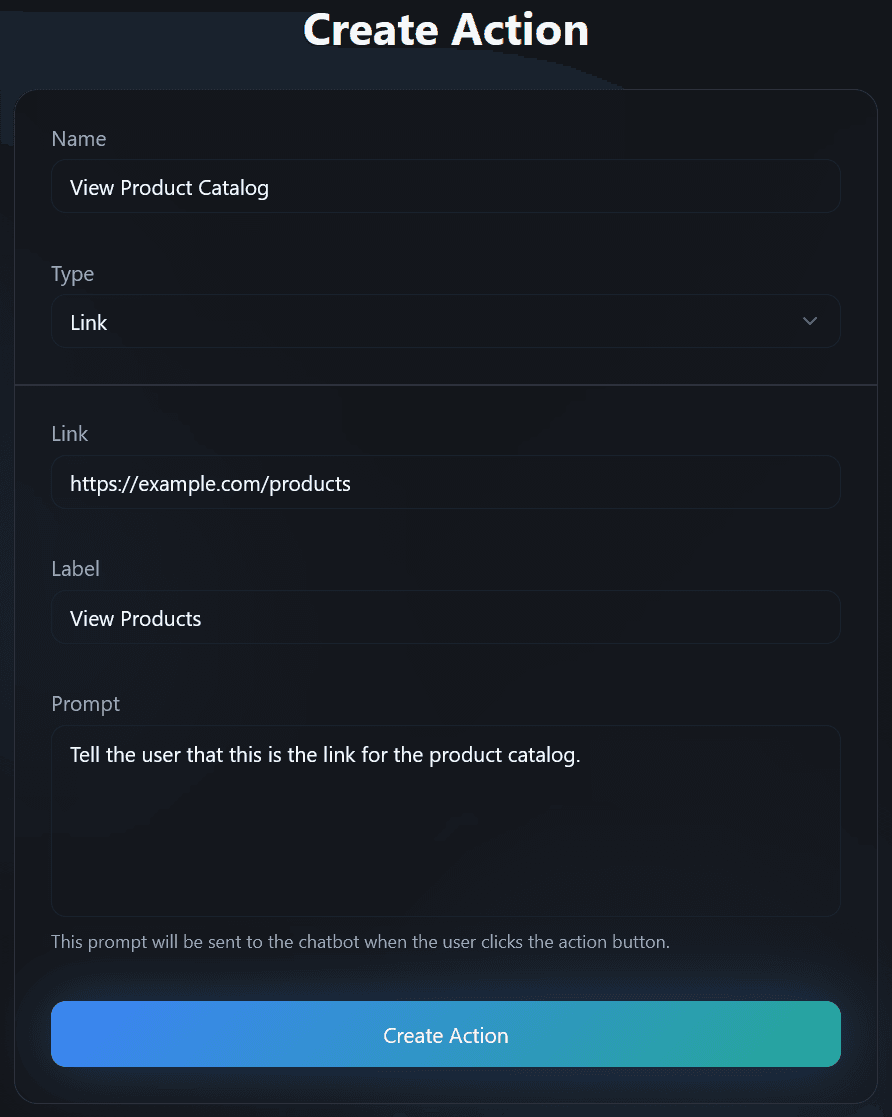
For API Call Actions:
- HTTP Method - Select GET, POST, PUT, DELETE, or PATCH
- URI - The API endpoint URL (must be a valid URL)
- Bearer Token (Optional) - Authentication token if your API requires it
- Prompt - The message that will be sent to the chatbot after the API call completes
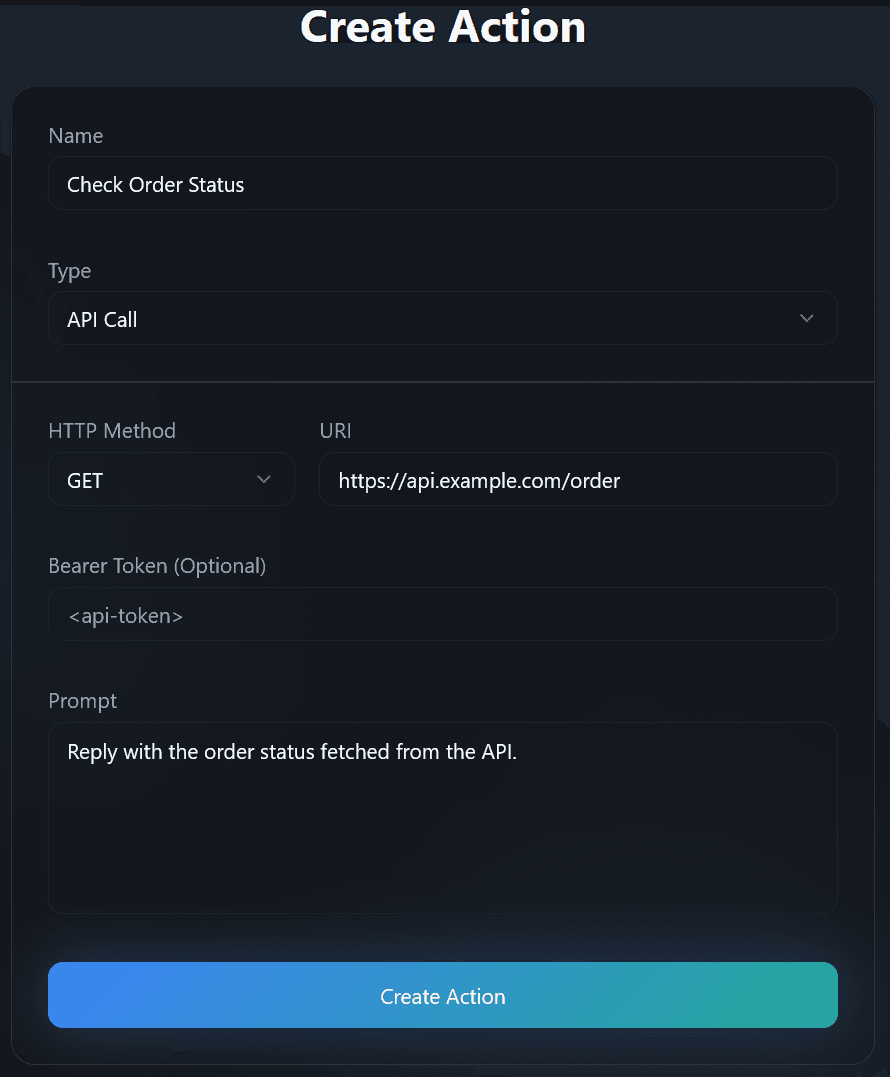
Create the Action
Click the "Create Action" button at the bottom of the form. You'll be redirected back to the Actions page where your new action will appear.
Managing Actions
Once you've created actions, you can manage them from the Actions page.
Viewing Actions
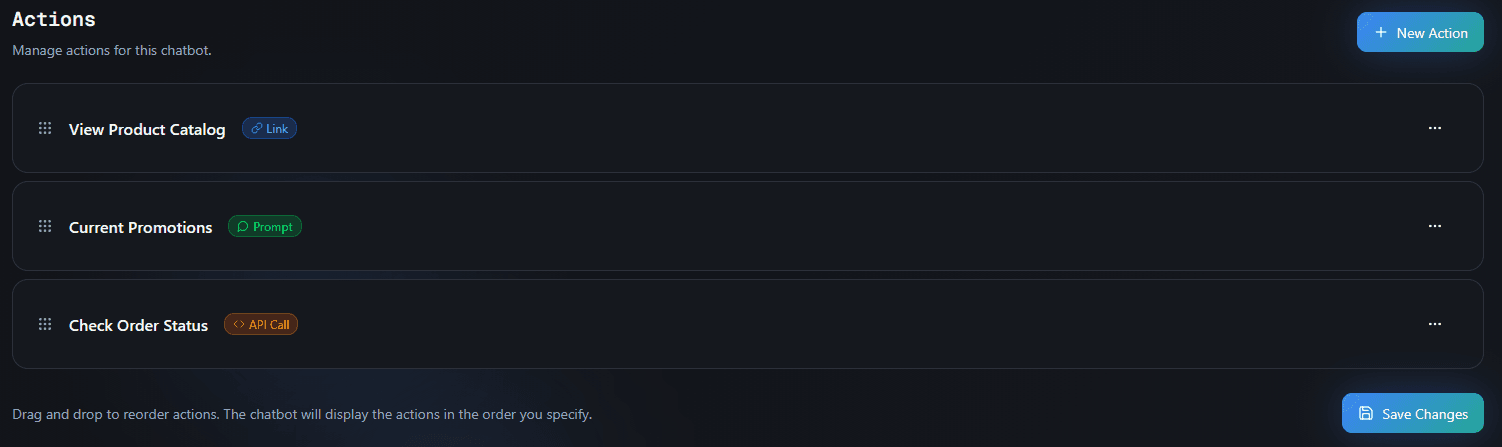
All your actions are displayed in a list on the Actions page. Each action shows:
- Name - The action's display name
- Type Badge - A colored badge indicating the action type:
- Green badge for Prompt actions
- Blue badge for Link actions
- Orange badge for API Call actions
Reordering Actions
Actions are displayed to users in the order they appear on the Actions page. To change the order:
- Click and hold the grip icon (⋮⋮) on the left side of an action card
- Drag it up or down to the desired position
- Release to drop it in the new position
- Click "Save Changes" to apply the new order
The chatbot will display actions in this order when they're shown to users.
Enabling and Disabling Actions
You can enable or disable actions to control when they're shown to users:
- Click the three-dot menu (⋮) on an action card
- Select "Edit" to modify the action
- Toggle the "Enabled" option
- Save your changes
Disabled actions won't be displayed to users, but they remain in your list for easy re-enabling later.
Deleting Actions
To remove an action permanently:
- Click the three-dot menu (⋮) on an action card
- Select "Delete"
- Confirm the deletion
Note: Deleted actions cannot be recovered. Make sure you want to remove the action before confirming.
Saving Changes
After reordering actions, you'll see a "Save Changes" button at the bottom of the page. Click it to save your new order. The button is disabled if no changes have been made.
How Actions Work in Conversations
Actions are displayed to users when the chatbot determines they're relevant to the conversation. The chatbot uses AI to decide when to show actions based on:
- The current conversation context
- User questions and intent
- Available actions and their configurations
When a user clicks an action:
- Prompt actions send the configured prompt to the chatbot
- Link actions open the URL and send the prompt to the chatbot
- API Call actions make the HTTP request, include the response in context, then send the prompt
Best Practices
- Use Clear Names - Choose action names that clearly describe what they do
- Keep Prompts Concise - Write prompts that guide the chatbot effectively
- Order Matters - Place the most important or commonly used actions at the top
- Test API Calls - Verify that API Call actions work correctly before deploying
- Use Appropriate Types - Choose the right action type for each use case:
- Use Prompt for simple chatbot interactions
- Use Link for external resources
- Use API Call for dynamic data
- Secure Tokens - Keep API tokens secure and never share them publicly
- Regular Review - Periodically review and update your actions to ensure they're still relevant
Troubleshooting
Actions not appearing in chatbot?
- Make sure the action is enabled
- Check that the chatbot is determining the action is relevant to the conversation
- Verify the action was saved successfully
API Call action not working?
- Verify the URI is correct and accessible
- Check that the HTTP method matches your API endpoint
- Ensure the Bearer token (if required) is valid
- Test the API endpoint directly to confirm it's working
Link action not opening?
- Verify the URL is valid and starts with
http://orhttps:// - Check that the link isn't blocked by browser security settings
- Ensure the URL is accessible from your domain
Can't reorder actions?
- Make sure you've actually moved an action (the Save Changes button should be enabled)
- Try refreshing the page if drag and drop isn't working
- Check that you have the necessary permissions
Action deleted but still showing?
- Actions may be cached. Try refreshing the chatbot interface
- Ensure you saved the deletion successfully
- Check if the action appears in a different chatbot instance